
Do you work with international freelancers? Once your contractor completes their job, you can use the Request an invoice feature for easy cross-border payments and a compliant invoice without extra admin tasks.
You need an employer profile to use this feature. You can sign up here.
Step-by-step payment process
How to fill out the Request an invoice form
Step-by-step payment process
- Log in to your client dashboard. Click “Request an invoice” at the top of the screen.
- Enter the freelancer’s email address. The freelancer must have a Useme account. Enter the email address assigned to that account and the freelancer’s details will be filled in automatically. ℹ️ If the freelancer doesn’t have a Useme account yet: You can enter their email address and click “Send a registration link.” We’ll send them instructions on how to sign up and email you once their account is ready. Then go to step 3.
- Fill out the form with the job details. Below we explain what to enter in each step of the form.
-
We contact the freelancer. We’ll send them an email and a new deal will appear in their dashboard.
-
The freelancer uploads files. This means they accept the terms provided in your form. They log in and add files that prove the work is complete (part or all of the finished work, a screenshot, a report, etc.).
- We check the files. If they match what you described in your form, we move on with the payment process.
- Payment. We’ll email you a deposit request with a link to pay online. Check how to pay a deposit request for a freelancer’s work.
- Final invoice. After we receive your payment, we’ll email you the invoice and the freelancer’s files. You’ll also find them in the deal on your dashboard.
- Freelancer’s payout. We send them the payout directly to their account, usually within 24 hours (up to 3 business days in special cases).
- Formalities on us. Useme is an intermediary between you and your freelancer, so there’s no need to draft, sign, or store contracts on your side.
Example: You’re a marketing manager at an online pet store in the US. You hire a graphic designer from Serbia to prepare banners for a social media campaign. After you accept the banners, the freelancer is ready for payment, and you need an invoice – it’s time to use Request an invoice.
How to fill out the Request an invoice form
- Start
Log in to your employer dashboard and click “Request an invoice” at the top of the screen.
The freelancer must have a Useme account. Make sure you provide the email of that account so we can use it to contact about your deal.-png.png?width=1042&height=778&name=image%20(23)-png.png)
Select a category (for example, Design) and a subcategory (for example, UX/UI design). Enter a title, e.g., “Pet store website mockup in Figma.” The category and title will appear on your invoice.
Add a short description of the job. Focus on the results. The title and description should clearly show what the job is, so the freelancer can recognize it.-png.png?width=714&height=862&name=image%20(24)-png.png)
Here, you set the invoice amount and the freelancer’s payout. The service fee is added to the invoice amount. -png.png?width=871&height=844&name=image%20(27)-png.png)
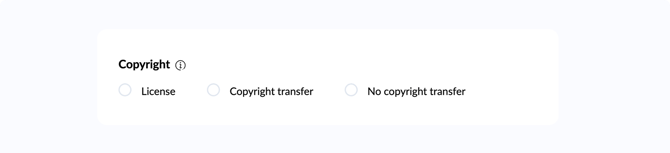
Select the option you agreed on with the freelancer:
- License – you can use their work for 15 years. The freelancer can still license it to other clients.
- Copyright transfer – you get full economic rights to their work.
- No copyright transfer – you don’t get a license or copyrights.
Enter the number of days. It counts from the moment you get our email with the deposit request and payment link.
ℹ️ A deposit request is a document confirming the job details. It’s not an accounting document. You’ll get the final invoice only after you pay for the freelancer’s work.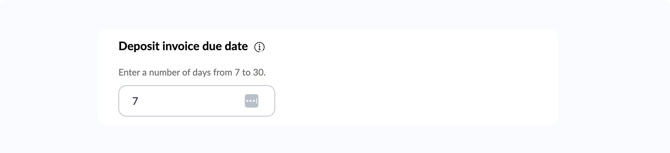
The freelancer must upload one or more files (in any format) to confirm that the job is done. They have as many days to do that as you set here – at least 7.-png.png?width=1291&height=832&name=image%20(25)-png.png)
Check if everything is correct and edit if needed. We’ll use these details to generate the deposit request and then the final invoice. If all is fine, click “Send.”-png.png?width=943&height=838&name=image%20(26)-png.png)
After you send the form, a new deal will appear in your dashboard under Deals.